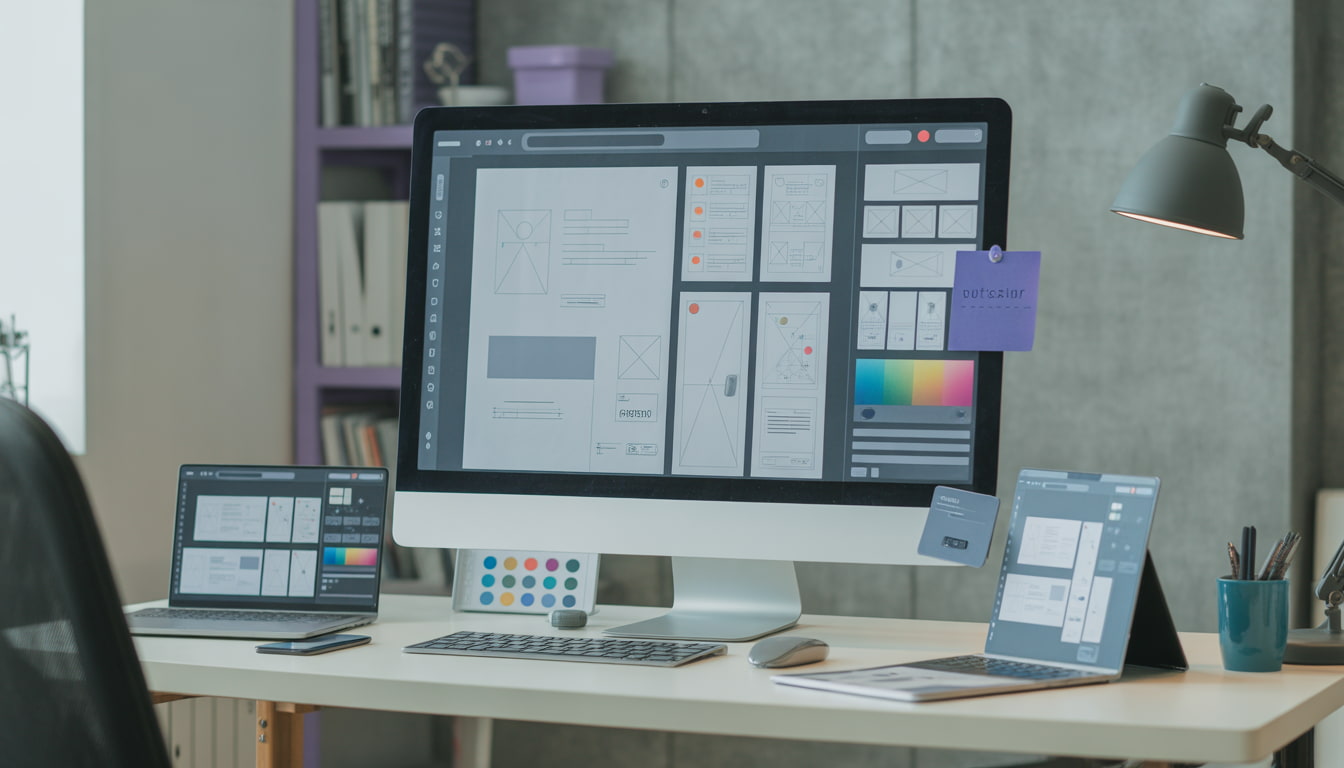
Import professional Versana demo sites with one click. Choose from Blog, Business, or Portfolio layouts. Complete guide with screenshots.
Why Import a Demo?
Building a website from scratch takes hours, even with a great theme. That’s why Versana includes three professionally designed, ready-to-import demo sites. In less than 2 minutes, you can have a complete, professional website that you just need to customize with your content.
Think of demo import as getting a professionally decorated house instead of an empty lot. The hard work is done – you just add your personal touches.
What Gets Imported?
When you import a Versana demo, here’s what you get:
Pages: Homepage, About, Services/Portfolio, Contact – all fully designed with professional content
Blog Posts: 6 sample posts with featured images demonstrating the blog layout
Navigation Menu: Pre-configured menu with all your pages
Theme Styling: Colors, fonts, and spacing matching the demo
Patterns: All 16 block patterns ready to use anywhere
Settings: Optimized reading settings and homepage configuration
What Doesn’t Get Imported:
- Your existing content (demos add to your site, not replace)
- WordPress settings (permalinks, users, etc.)
- Plugin configurations
- Media library images (these are placeholders you’ll replace)
The Three Versana Demos
Blog Demo: For Content Creators
Perfect For:
- Personal blogs
- Writers and authors
- Content marketers
- Magazine-style sites
Design Features:
- Warm pink and orange color scheme
- Serif fonts for readability
- Large featured images
- Clean, minimal layouts
- Focus on typography
Included Pages:
- Homepage with hero and latest posts
- About page
- Contact page
Business Demo: For Companies
Perfect For:
- Corporate websites
- Agencies and consultancies
- B2B companies
- Professional services
Design Features:
- Professional blue color scheme
- Sans-serif fonts
- Trust-building elements (stats, logos, testimonials)
- Conversion-focused layouts
- 13 premium patterns
Included Pages:
- Homepage with full business sections
- Services page
- About page with team
- Contact page with form placeholder
Portfolio Demo: For Creatives
Perfect For:
- Designers and artists
- Photographers
- Creative agencies
- Freelancers
Design Features:
- Bold purple and pink colors
- Large portfolio gallery
- Project showcase layouts
- Creative case study template
- Visual-first design
Included Pages:
- Homepage with portfolio grid
- About page
- Contact page
Step-by-Step: How to Import a Demo
Prerequisites:
- Versana theme installed and activated
- Versana Companion plugin installed and activated
- Fresh WordPress install (recommended but not required)
Import Process:
Step 1: Access Demo Import
- Log into WordPress Admin
- Go to Appearance → Theme Options
- Click the “Demo Import” tab
Step 2: Preview the Demos
- You’ll see three demo cards (Blog, Business, Portfolio)
- Click “Preview” button on each to see live demo sites
- Choose the demo that best fits your needs
Step 3: Import Your Chosen Demo
- Click the “Import” button on your selected demo
- A confirmation popup appears – click “Yes, Import”
- Watch the progress bar (typically 30-60 seconds)
- You’ll see a success message when complete
Step 4: View Your New Site
- Click “View Site” to see your imported demo
- Everything should look like the preview
- Navigate through pages to see all content
That’s it! Your professional website is ready.
What to Do After Importing
Immediate Steps (5 minutes)
1. Check Your Homepage
- Visit your site’s homepage
- Verify all sections loaded correctly
- Check mobile view
2. Review Navigation
- Test all menu links
- Ensure pages are accessible
- Check footer links
3. Browse Pages
- Visit About, Services/Portfolio, Contact pages
- Confirm content loaded
- Note what needs customization
Next Steps (30-60 minutes)
4. Replace Demo Text
- Edit About page with your story
- Update Contact page with your info
- Customize homepage headlines
5. Add Your Images
- Replace hero banner images
- Update blog post featured images
- Add your logo
- Replace team photos (if applicable)
6. Customize Colors (Optional)
- Go to Appearance → Editor → Styles
- Choose a different color scheme if desired
- Or keep the demo colors
7. Configure Integrations
- Add Google Analytics (Theme Options → Integrations)
- Set up contact form plugin
- Connect social media accounts
Can I Import Multiple Demos?
Yes! You can try different demos to see which you prefer. Here’s how it works:
Switching Demos:
- Import a new demo anytime from Theme Options
- New demo content is added to your site
- Previous demo content remains (you can delete manually if desired)
- Theme styling updates to match new demo
Best Practice: If testing demos, use a staging site or local development environment. For production sites, choose your demo carefully before importing.
Removing Demo Content
If you want to start fresh after testing:
Remove Imported Pages:
- Go to Pages → All Pages
- Select demo pages
- Move to Trash
- Empty Trash
Remove Imported Posts:
- Go to Posts → All Posts
- Select demo posts
- Move to Trash
- Empty Trash
Remove Menu:
- Go to Appearance → Editor → Navigation
- Delete Versana Menu items
- Add your own pages
Reset Theme Styling:
- Go to Appearance → Editor → Styles
- Choose “Default” style
- Customize from there
Or use the “Remove Demo” button in Theme Options → Demo Import.
Troubleshooting Common Issues
Import Button Doesn’t Work
- Ensure Versana Companion plugin is activated
- Check your hosting allows file uploads
- Try refreshing the page
Content Partially Imported
- Some hosts have strict timeout limits
- Content usually imports successfully even if you see errors
- Check Pages and Posts to verify
Images Not Showing
- Demo images are placeholders
- Replace with your own images
- Some hosts block external image imports (normal)
Demo Looks Different Than Preview
- Clear your browser cache
- Check if you have caching plugins active
- Deactivate other plugins temporarily
404 Errors on Pages
- Go to Settings → Permalinks
- Click “Save Changes” (no changes needed)
- This refreshes WordPress rewrite rules
Pro Tips for Demo Import Success
Tip 1: Import on Fresh Install For best results, import demos on a fresh WordPress installation. This prevents conflicts with existing content.
Tip 2: Use Staging First Test demos on a staging site before importing on your live site. Many hosts offer free staging environments.
Tip 3: Take Screenshots Before importing, screenshot your existing site if you have one. This helps if you need to reference old content.
Tip 4: Don’t Rush Customization Live with the demo for a day before making major changes. You might find the default design works perfectly.
Tip 5: Keep Demo Content Initially Demo blog posts showcase your blog layout beautifully. Replace them gradually as you create your own content.
What Makes Versana’s Demo Import Special?
Unlike other themes, Versana’s demo import:
Preserves Your Content: Adds demo content alongside existing posts/pages rather than deleting everything
Includes Actual Content: Not just lorem ipsum – real, helpful content about using Versana
One-Click Process: No complicated wizards or multiple steps
Fast Import: 30-60 seconds vs 5-10 minutes with other themes
No Plugin Bloat: Doesn’t require demo-specific plugins that slow your site
Reversible: Easy to remove demo content if you change your mind
Next Steps
After importing your demo:
- Read our customization guide: Learn to use the Site Editor
- Explore block patterns: Discover all 16 professional patterns
- Optimize your site: Set up lazy loading and caching
- Add your content: Replace demo text and images
- Launch your site: Share your new website with the world
Questions? Check our documentation or visit the support forum.
Your professional website is just one click away. Choose your demo and get started today!




Leave a Reply